How to Switch from Excel to QuickBooks — A Complete Migration Guide (2026)


Fintech Analyst · Founder of Tech Capital Hub
Marcus has spent more than a decade researching financial technology and business accounting tools, and has helped small business owners move off spreadsheets for real. In this guide, he walks through the full Excel to QuickBooks migration — cleaning your data, converting sheets to CSV, importing the chart of accounts and lists in the right order, handling mid-year payroll history, and reconciling everything before you go live. The goal is simple: help you switch without locking your old mess into a new system.
Okay so I’ll be upfront about something. When I first started helping small business owners migrate off Excel, I genuinely underestimated how emotional this process can get. Excel isn’t just a spreadsheet for most people — it’s years of work. Custom formulas you built yourself. A system that, yes, is kind of janky but you know it inside out.
So no, I’m not going to tell you Excel is terrible and QuickBooks is the obvious answer. What I will tell you is this: past a certain point, Excel stops being a tool and starts being a liability. And when you’re comparing QuickBooks against another platform entirely — like FreshBooks — the case for upgrading becomes even clearer. Our QuickBooks vs FreshBooks breakdown shows exactly which businesses each platform is built for.
And for most US-based small business owners, that point usually hits somewhere around the time your chart of accounts lives across four different tabs and nobody’s quite sure which one is current.
This guide is going to walk you through the actual switch. Not the marketing version where everything goes smoothly in three easy steps. The real version, including the parts that trip people up, the stuff QuickBooks’ own documentation buries in footnotes, and what you actually need to do differently in 2026 compared to even two or three years ago.
Grab a coffee. There’s a bit to cover!
The Short Answer: Can You Import Excel Into QuickBooks Online?
Yes — but not as a direct Excel file. You’ll need to convert each worksheet to CSV, import in the right order, and run a few checks before going live.
Does QuickBooks Online accept Excel files directly?
No. QuickBooks Online does not import .xlsx files directly. Save each Excel sheet as a CSV first, then import that CSV into QuickBooks Online.
Can I import transactions from Excel to QuickBooks Online?
Yes. Once the data is cleaned and saved as CSV, you can import transaction-related records into QuickBooks Online. The key is to import data in the correct sequence so records connect properly.
What’s the safest import order?
- Chart of Accounts
- Customers and Vendors
- Products and Services
- Open Invoices and Bills
- Historical Transactions (optional)
What This Guide Covers (and What It Doesn’t)
Quick scope note, because I want to respect your time!
This guide covers: moving your accounting data from Excel to QuickBooks Online — the full Excel to QBO migration, from data cleanup to CSV import to post-migration validation and mid-year payroll setup.
This guide does not cover: bank-feed setup, bank-statement imports, QuickBooks Desktop-only troubleshooting, or general Excel file help. Those are genuinely different workflows, and mixing them up is where a lot of migrations go sideways. If your main goal is importing bank feeds, that’s a separate topic entirely.
Sound like what you need? Great. Let’s keep going.
Table of Contents

Why Excel Eventually Becomes the Problem (Even If You Love It)
Here’s the thing about Excel that nobody says out loud. It’s not a bad tool. It’s actually a brilliant tool — for analysis, for modeling, for one-off calculations. What it was never designed to be is a live accounting system for a real business.
The structural issue is that Excel is what’s called a flat-file system. Every cell is basically its own universe. If you want your invoice data to connect to your customer data, you’re doing that manually, whether that’s through a VLOOKUP, a cross-sheet reference, or just copying and pasting the same name fifty times. The moment one of those connections breaks — accidental overwrite, a formula that got dragged wrong, someone opened it on a different computer and saved it funny — the whole picture starts to drift.
Accountants have a name for this. They call it the waterfall effect. One bad cell at the top of your sheet, and every formula downstream from it is now feeding off wrong data. The nightmare version of this is when you don’t notice for two or three months. I’ve seen businesses reconcile their bank statements manually because their Excel totals were off and they didn’t know when it happened.
QuickBooks is built on a relational database, which is honestly just a fancy way of saying everything is connected at the source and stays connected automatically. Update a vendor’s address once and it’s updated everywhere. Post a payment and your aging report updates in real time. No manual syncing, no formula maintenance, no hoping someone didn’t accidentally delete column G.
There’s also the audit trail question. In Excel, if a number changes, there’s no record of it unless you’ve manually set up version history, and realistically almost nobody does. In QuickBooks, every single change is timestamped and attributed to a user. If you’ve ever had a dispute with a business partner over what a number was on a certain date, you understand why that matters.
The broader picture backs this up too. The U.S. Small Business Administration has long emphasized that accurate, consistent bookkeeping is one of the foundations of a healthy small business — and a connected accounting system makes that far easier to maintain than a stack of spreadsheets. Once your financials update themselves, you spend less time firefighting and more time actually running the business. That setup only pays off, though, if you configure QuickBooks correctly from day one — our QuickBooks setup guide for small business walks through every configuration step in the right order.

The Step Everyone Skips: Cleaning Your Data Before You Import
Okay, real talk. If you take one thing from this entire guide, make it this: the quality of your migration is almost entirely determined by what you do before you ever open QuickBooks.
Most people skip straight to the import and then spend weeks wondering why their reports are wrong. What actually happened is they imported their existing mess into a new system and now the mess is locked in and harder to fix.
There’s an old saying in data management — garbage in, garbage out. It’s annoyingly accurate here.
Start with your lists
Get your customer list, vendor list, and chart of accounts into a single, clean spreadsheet. Then go through them and look for duplicates. I’m not just talking about exact duplicates. I mean “ABC Landscaping” and “ABC Landscaping LLC” and “A.B.C. Landscaping” — QuickBooks will treat all three as different customers unless you consolidate them right now, and then you’ll spend hours merging records later.
For your chart of accounts, this is a good time to actually think about what you need going forward. If you’ve got six accounts that all basically mean “marketing expenses,” pick one and inactivate the rest. Cleaner COA means cleaner reports, permanently.
Two Excel functions that will save you a headache
Before you export anything to CSV, run these on every column that contains names or text. Both are documented in Microsoft’s official Excel function reference, so you can double-check the exact syntax there if you want:
- TRIM — removes extra spaces from the beginning and end of cell values. Looks completely harmless. But “John Smith” with a trailing space and “John Smith” without one are two different records in QuickBooks’ database. You’ll end up with duplicate customers you have no idea how to find.
- CLEAN — strips out invisible non-printable characters. These show up a lot when you’ve been copying data from PDFs, old invoicing systems, or any software that uses proprietary formatting. You literally cannot see them, but they cause import errors that are almost impossible to diagnose without knowing what to look for.
Also check your date formats. QuickBooks Online in the US expects MM/DD/YYYY. If your spreadsheet has dates formatted as text strings, or a mix of formats because different people entered data different ways, normalize everything before you export. Inconsistent dates are one of the top reasons imports partially fail.
Don’t bring over closed transactions as open ones
This one causes a specific kind of chaos that’s annoying to clean up. Only transactions that are genuinely still open — unpaid invoices, outstanding bills — should come into QuickBooks as live records. Anything paid and settled needs to stay out of the import or go into a separate historical archive.
If you bring in a paid invoice as an open transaction, QuickBooks is going to treat it as money your customer still owes you. Your accounts receivable aging report will show customers who are “90+ days past due” on bills they paid last year. That’s not a conversation anyone wants to have!
The Import Order — Get This Wrong and You’ll Regret It
I said earlier that QuickBooks uses a relational database, and here’s where that becomes practically important. Because everything is connected, you have to import things in the right sequence or the system doesn’t know what to connect them to.
Think of it like building a house. You don’t hang the doors before you build the walls. The sequence matters:
- Chart of Accounts first — always, no exceptions. This is the structural foundation. Every transaction that comes in after this will get categorized against it.
- Customers and Suppliers — these need to exist before you can attach any transactions to them. Import them before invoices or bills, not after.
- Products and Services — if your invoices reference specific items or service codes, those need to be in the system before the invoices arrive.
- Open Invoices and Bills — your live accounts receivable and payable. By this point, QuickBooks knows who your customers are, what products you sell, and what accounts to categorize into.
- Historical Transactions (optional) — prior closed transactions for reference. Most small businesses either skip this or import only the last 12 months. Going back further than you actually need to reference adds time without much benefit.
Follow this order and the actual import process is pretty painless. Try to do it backwards or skip steps because you’re in a hurry, and you’ll create data problems that take days to untangle.
How to Import Excel Data Into QuickBooks Online: Step by Step
QuickBooks Online doesn’t accept .xlsx files. You’ll need to save each sheet as a CSV — in Excel that’s File > Save As > CSV (Comma delimited). Do each sheet separately. Microsoft documents this save step here if you want the visual walkthrough.
Chart of Accounts
Settings (the gear icon top right) > Chart of Accounts > Import. Download their sample template first — it tells you exactly which columns it wants. Minimum fields are Account Name, Account Type, and Detail Type. If you use account numbers, include those. Makes reconciliation cleaner. Intuit keeps step-by-step instructions in the QuickBooks Online help center, which is worth bookmarking as you go.
Customers and Vendors
For customers: Sales > Customers > click the small arrow next to “New Customer” > Import. Download the sample, fill it in, upload. You technically only need the name field but spending ten minutes adding emails and billing addresses now saves you doing it customer by customer later. Repeat the same process for vendors under Expenses > Vendors.
Invoices — do this one thing first
Before you import a single invoice, go to Settings > Automation and turn off “Automatically apply credits.” This is not optional. This setting causes QuickBooks to auto-match credits to invoices during the import, which creates transaction pairings you didn’t ask for. I’ve seen this one setting create hours of post-migration cleanup. Just turn it off.
Your invoice CSV needs: customer name (spelled exactly — and I mean exactly — as it appears in your customer list), invoice date, due date, and at least one line item with an amount. If a customer name is even slightly off, QuickBooks creates a brand new customer record for the typo. Check spelling before uploading.

Mid-Year Payroll Migration: Read This Twice
If you’re switching to QuickBooks mid-year and you run payroll, this is probably the most important part of this entire guide. And it’s also the part most people under-prepare for.
Payroll migration is manual — there’s no automated import, and getting the numbers wrong means incorrect W-2s at year-end. If you’re also evaluating whether QuickBooks Payroll itself is worth adding to your subscription, our QuickBooks Payroll review covers every tier’s cost, tax automation features, and common gotchas.
You have to enter year-to-date totals by hand for every employee so QuickBooks can generate accurate W-2s and 1099s at year end. If those numbers are wrong, your year-end filings are wrong. It’s worth the time to get right.
Before you start entering anything, gather these for every employee:
- YTD totals for every type of pay they’ve received — regular wages, overtime, bonuses, commissions, anything
- Every deduction: health insurance, dental, 401(k), HSA contributions, any garnishments
- Every tax withheld: federal income tax, Social Security (6.2%), Medicare (1.45%), plus your state and any local taxes
- Payroll reports broken down by individual pay period for the current quarter, not just the annual total
That last point — the quarterly breakdown — is something people miss. The IRS requires most employers to file Form 941 quarterly, so QuickBooks needs to be able to reconcile what you’ve paid by quarter. If you only give it the YTD totals without the quarterly detail, your 941s won’t match and you’ll have a compliance headache. For the current withholding rates and payroll tax rules, the IRS Employer’s Tax Guide (Publication 15) is the authoritative source to check against.
If you’ve got ten or more employees, block out a full day for this. Do it carefully. Double-check every number against your old payroll records before saving.
Post-Migration: Don’t Skip These Checks
You imported your data. QuickBooks didn’t throw any errors. You’re tempted to just start using it.
Don’t. Not yet.
The import might look clean and still have silent problems underneath. These checks are what catch those.
Compare old reports to new ones side by side
Run a Trial Balance, a Balance Sheet, and an AR Aging Summary from both your old system and QuickBooks. Use accrual basis for both, even if your business normally runs on cash — accrual gives you a complete picture of every transaction and makes comparison more accurate. The totals should match. If they don’t, something got missed or duplicated.
The bank reconciliation cleanup nobody tells you about
QuickBooks starts fresh with the assumption that zero of your historical transactions have ever been reconciled. Which means every transaction you just imported shows up as uncleared. If you don’t fix this before your next reconciliation, you’ll have hundreds of phantom items from years ago cluttering up your bank rec.
Go through and mark everything prior to your migration date as reconciled. Yes, it takes a while. It’s worth it.
Sales tax accounts
Migration tools commonly dump all your tax amounts into a generic holding account rather than your actual sales tax liability account. You’ll usually need to post a manual journal entry to move those balances to the right place. Skip this and your tax reports will show incorrect amounts at filing time.
Link up unmatched payments
Historical payments don’t always auto-link to their invoices during import. Pull up your AR aging report and look for anything showing an open balance that should already be zero. Apply those payments manually. Do the same for AP. Your aging reports need to be accurate before you go live.
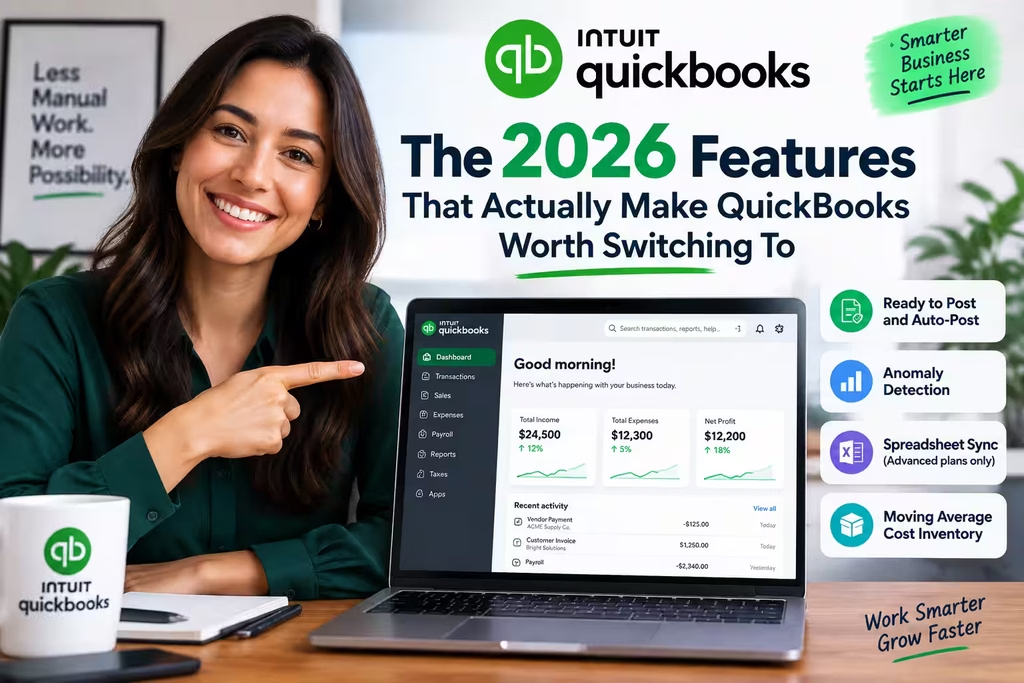
The 2026 Features That Actually Make QuickBooks Worth Switching To
I want to be honest here — not every new feature Intuit announces is life-changing. But the AI-driven tools they’ve built into the 2026 version are genuinely different from what was there a few years ago.
If you’ve looked at QuickBooks before and thought it felt like too much manual work, some of this will change your mind. One more consideration worth thinking through: whether QuickBooks Online or Desktop is the right version for your setup. Our QuickBooks Online vs Desktop comparison explains the 2026 support cutoffs and what each tier actually delivers.
Ready to Post and Auto-Post
QuickBooks watches how you categorize transactions over time and starts learning your patterns. When it’s confident about a transaction — say, a recurring charge from the same vendor you always post to the same account — it queues it in “Ready to Post.” You review it, click once, done. For transactions going through QuickBooks Payroll or Bill Pay directly, Auto-Post handles them without you touching anything at all.
In practice, this takes most of the repetitive daily categorization off your plate within a few weeks of using it.
Anomaly detection
This one I genuinely think is underrated. The system scans your P&L and Balance Sheet looking for things that look off — duplicate transactions, income posted to an expense account, a month where your phone bill was four times normal. It flags them with an explanation and lets you decide whether it’s an error or something intentional. Catches the kind of small things that quietly distort your reports for months before anyone notices.
Spreadsheet Sync (Advanced plans only)
For anyone reading this who’s thinking “I still want to use Excel for analysis” — this is for you! Spreadsheet Sync creates a live two-way connection between your QuickBooks data and Excel. Pull live numbers into Excel for your custom modeling, run whatever analysis you want, then sync changes back to QuickBooks with one click. The two systems stay current together. It’s honestly a much better setup than trying to pick one over the other.
Moving Average Cost inventory
If you carry physical inventory, the new Moving Average Cost method (MAC) available in 2026 is worth knowing about. Instead of locking in a fixed unit cost or using FIFO, MAC recalculates the average cost of your inventory every time you receive new stock. For businesses with fairly stable product turnover, it gives you a more realistic inventory value on your balance sheet and smooths out the distortions you get when supplier prices fluctuate.
Excel vs. QuickBooks: Side by Side
For anyone who wants the quick version before making a decision:
Excel vs. QuickBooks: Side by Side
Use this comparison to see where spreadsheets still help and where QuickBooks becomes the better long-term system for day-to-day accounting.
| Area | Excel | QuickBooks Online 2026 |
|---|---|---|
| Data structure |
Spreadsheet-based Flat-file setup where connections are manual formulas, links, and references that can break over time. |
Connected system Relational database where records stay linked automatically across customers, transactions, and reports. |
| Error handling | Errors can spread silently through formulas or copied cells, and they’re often discovered weeks later. | Real-time anomaly detection and connected records make it easier to catch issues before they distort reports. |
| Audit trail | No built-in accounting audit trail by default unless you’ve layered on strict version controls and process discipline. | Every change is logged with user attribution and timing, which makes accountability and cleanup much easier. |
| Reports |
Manual pivot tables, exports, and spreadsheet models. Flexible, but often static and time-consuming to update. Best for custom analysis | Live dashboards, real-time P&L, balance sheet visibility, and reporting tied directly to your accounting records. |
| Integrations | Usually depends on disconnected files, manual imports, and copy-paste workflows between systems. | Built to work with connected apps, banks, payroll tools, and other business systems in a more continuous workflow. |
| Manual workload | High. Most validation, categorization, upkeep, and error-checking sit on the user. |
Lower over time once workflows, recurring rules, and categorization patterns are set up correctly. Best for ongoing bookkeeping |
Bottom line: Excel is still excellent for modeling, custom analysis, and one-off financial work. But for ongoing bookkeeping, reconciliations, audit trails, and live reporting, QuickBooks becomes the more stable system once your business outgrows spreadsheet-only processes.

Mistakes That Will Come Back to Bite You
These come up in nearly every migration that goes wrong. Worth knowing ahead of time:
- Importing in the wrong order — invoices before customers, anything before the Chart of Accounts. Creates errors and ghost records.
- Not running TRIM and CLEAN before export — invisible characters and trailing spaces create duplicates you’ll spend hours cleaning up.
- Leaving “Automatically apply credits” turned on during the import. Single biggest avoidable mistake.
- Not marking historical transactions as reconciled before your first bank rec. Hundreds of phantom uncleared items.
- Rushing payroll YTD entry. Wrong deduction amounts mean incorrect W-2s and IRS headaches.
- Going live without running side-by-side report comparison. Silent problems become expensive problems.
Your Excel to QuickBooks Migration Checklist
Tick each step as you go — work top to bottom for a clean, error-free switch.
People Also Ask
Can I import directly from Excel or do I need CSV?
CSV. QuickBooks Online doesn’t accept .xlsx files natively. Save each sheet as CSV separately and import from there. The conversion takes about thirty seconds, it’s not a big deal.
Realistically, how long does the whole migration take?
Depends more on your data than on QuickBooks. Clean records, small business, maybe a day or two for the whole thing. If you’ve got years of messy spreadsheets, complex inventory, or a bunch of employees where you need to enter payroll history manually — plan for a week, and don’t underestimate the cleanup phase before the actual import. That part always takes longer than people think it will.
Why is Export to Excel grayed out in QuickBooks Desktop?
Almost always means you don’t have the desktop version of Excel installed on that machine. QuickBooks Desktop doesn’t work with the browser version of Office 365 — it needs the full desktop app installed and activated. If Excel is definitely installed, check your Windows UAC settings, which can block the integration even when everything else looks fine.
Do I need a bookkeeper or accountant to do this?
Not necessarily. If your records are organized and the volume is manageable, this guide has everything you need to do it yourself. Where it starts to make more sense to bring someone in: complex inventory tracking, multi-year payroll history, or if you’re migrating from another accounting platform like Xero or Sage rather than from Excel. Getting the initial setup right is almost always cheaper than fixing a migration that went sideways.
Can I still use Excel after switching?
Yes, absolutely. A lot of business owners do both. QuickBooks handles the accounting; Excel stays around for custom modeling or reporting that QuickBooks doesn’t do natively. If you’re on QBO Advanced, Spreadsheet Sync makes this combination actually seamless rather than two parallel systems that never talk to each other.
What if I switch in the middle of the year?
Totally doable. Most businesses do a clean start on the first of a quarter to make things simpler. You’ll need to enter YTD payroll figures manually if you run payroll, and you can optionally bring in historical transactions if you want them accessible in QuickBooks. Just don’t bring in closed transactions as open ones. That mistake is annoying to fix.
Final Thoughts
I’ll say it plainly: this migration is a project, not a quick task. Anyone who tells you otherwise is either selling you something or hasn’t done it themselves.
But it’s a project with a real end point and a real payoff. Once you’re on the other side of it, the day-to-day experience of managing your finances changes in ways that are hard to fully appreciate until you’ve lived through a few months of it. Reports that used to take an hour to pull together are just there, live, when you log in. The 2026 AI features handle categorization that used to eat up time every single week. When something looks off, the system tells you — you don’t have to go hunting for it.
For US business owners who are tired of spreadsheet maintenance eating into time that should be going toward actually running the business, the switch genuinely pays for itself.
Clean your data. Follow the sequence. Verify before you go live. And don’t skip the payroll history step if it applies to you.
That’s really most of it.
Business Tools · Editorial Integrity
Sources & Citations
The official documentation and government guidance behind this Excel to QuickBooks migration guide — covering CSV imports, chart of accounts, invoice and list imports, mid-year payroll year-to-date history, and post-migration reconciliation.
This guide is grounded in official Intuit QuickBooks documentation and primary IRS payroll guidance. Import steps, supported file types, and product features can change over time, so always confirm the latest details on the official QuickBooks help pages before you start your migration.
View full sources, methodology, and editorial notes
This Excel to QuickBooks migration guide was written using official product documentation and primary tax guidance. Preference is given to first-party Intuit QuickBooks help articles and IRS publications where they directly support claims about importing Excel or CSV data, the correct import order for lists and transactions, disabling automatically applied credits before invoice imports, Spreadsheet Sync, and the year-to-date payroll figures needed for accurate quarterly and year-end filings. File-type support and feature availability can shift over time. This article is general educational information, not legal, tax, or financial advice.
- Importing Excel and CSV lists: *QuickBooks — Import or Export MS Excel Files* — cited for importing customers, vendors, items, and the chart of accounts from a spreadsheet.
- What you can import to QuickBooks Online: *QuickBooks — Common Questions About Importing Data* — cited for the supported data types, including bank data, customers, vendors, chart of accounts, products and services, and invoices.
- Disabling auto-applied credits before invoice imports: *QuickBooks — Turn Automatically Apply Credits On or Off* — cited for the exact setting to disable before importing open invoices.
- Two-way Excel connection after migration: *QuickBooks — Get Started with Spreadsheet Sync* — cited for the live QuickBooks-to-Excel connection on Advanced plans and its plan requirements.
- QuickBooks help and support hub: *QuickBooks Learn & Support* — cited for setup guidance, import walkthroughs, and reconciliation support resources.
- Quarterly payroll tax filing: *IRS — About Form 941 (Employer’s Quarterly Federal Tax Return)* — cited for the quarterly reporting of income, Social Security, and Medicare taxes withheld.
- Form 941 filing detail: *IRS — Instructions for Form 941* — cited for the quarterly breakdown QuickBooks needs to reconcile after a mid-year migration.
- Payroll tax rates and employer guidance: *IRS — Publication 15-A (Employer’s Supplemental Tax Guide)* — cited for the 6.2% Social Security and 1.45% Medicare rates used when entering payroll year-to-date totals.
- Year-end wage reporting: *IRS — About Form W-2* — cited for the year-end filings that depend on accurate year-to-date payroll history.
- Employer tax guide: *IRS — Publication 15 (Employer’s Tax Guide)* — cited for federal withholding and employer filing responsibilities referenced during payroll setup.
Excel to QuickBooks Migration Guide (2026) · Editorial Standards
Our Editorial Standards
Tech Capital Hub applies Google’s E-E-A-T principles to every guide. For this Excel to QuickBooks migration guide, that means plain language, real hands-on process, and honesty about the parts that trip people up. Import steps and supported file types are checked against official Intuit QuickBooks documentation. Payroll year-to-date and quarterly filing guidance is grounded in IRS references like Form 941 and Publication 15-A. The goal is simple: help you move off spreadsheets cleanly, without locking your old mess into a new system.
View how our editorial standards apply to this article
Written From Real Migrations
This guide comes from actually helping small business owners move from Excel to QuickBooks — the emotional parts, the messy data, and the errors that surface weeks later. The advice stays focused on the real work: cleaning your lists, converting sheets to CSV, importing in the right order, and verifying reports before you go live.
Migration Steps Explained Clearly
The article breaks down the import sequence, TRIM and CLEAN cleanup, the chart of accounts, invoice imports, mid-year payroll year-to-date setup, and post-migration reconciliation in simple language. Jargon is kept low. When terms like relational database or waterfall effect matter, they are explained in a way business owners can actually use.
Backed by Official and Primary Sources
Key steps are supported with official Intuit QuickBooks documentation for importing Excel and CSV data, disabling auto-applied credits, and Spreadsheet Sync, plus IRS guidance including Form 941, Publication 15-A, and Form W-2. We avoid leaning on weak affiliate roundups or recycled listicles as source material.
Clear About Effort, Risks, and Updates
We say plainly that this migration is a project, not a quick task — and we flag the traps: closed invoices imported as open, unreconciled history, and rushed payroll entry that leads to wrong W-2s. Import steps and product features can change, so always confirm the latest details on official QuickBooks help pages and relevant tax authorities before you start.
Excel to QuickBooks Migration Guide (2026) · About the Author
Marcus Delray
Fintech Analyst · Founder of Tech Capital Hub
Marcus Delray is a fintech analyst and the founder of Tech Capital Hub. In this Excel to QuickBooks migration guide, he walks through cleaning your data, converting sheets to CSV, importing lists in the right order, and reconciling everything before you go live. The focus is simple: help you switch without locking your old spreadsheet mess into a new system.
View full author bio, credentials, and links
Marcus Delray has spent over a decade researching financial technology. He built Tech Capital Hub to turn that research into useful, plain-English content for business owners, operators, and teams moving off spreadsheets. His work focuses on accounting tools, migration workflows, fintech platforms, and the practical trade-offs that matter when real money and clean books are on the line.
In this guide, Marcus answers the questions real business owners ask before they switch: Can I import directly from Excel or do I need CSV? What order should I import my data? How do I handle mid-year payroll year-to-date totals? And what checks do I run before going live? He breaks down data cleanup, the chart of accounts, invoice imports, and post-migration reconciliation in clear language. Coverage is grounded in official Intuit QuickBooks documentation and primary IRS guidance where relevant. All articles are educational information, not financial, legal, or tax advice.
- Covers spreadsheet-to-QuickBooks migration, accounting platforms, and fintech tools in clear, owner-focused language
- Explains the correct import order for the chart of accounts, customers, vendors, products, and open invoices
- Details practical steps like TRIM and CLEAN data cleanup, CSV conversion, and disabling auto-applied credits
- Walks through mid-year payroll year-to-date setup so quarterly 941s and year-end W-2s reconcile
- Uses official Intuit documentation and primary IRS guidance rather than recycled affiliate summaries
Enjoying our content?
Click below to add us as a preferred source. Google will prioritize our latest articles in your Top Stories, AI Mode, and AI Overviews.
Preferred Source on Google